How to work with initiatives
This content was translated using artificial intelligence. To request a review, please email documentacao_se@softexpert.com.
This article is valid for version 3.0 of the system. Click here to access the valid documentation for the previous versions.
Prerequisites
- Activity type created.
- Access to the Management > Workspace (KN009) menu.
- Access to the Board and backlog (KN008) menu.
Introduction
An initiative facilitates the management of various activities with the same objective.
To work with an initiative, there needs to be a unique activity type to classify it, with no activities associated with it. Additionally, you need to associate the type with a flowchart in the workspace, to which you want to apply the initiative to define its flow.
See how to set these configurations and work with initiatives:
Associating task type and flowchart
1. Access the Management > Workspace (KN009) menu.
2. Locate the workspace and right-click on it.
3. Select the Open data option.
4. In the workspace data, click on the Task flow tab.
5. Click the Create button to define an activity flow.
6. In the Activity type field, select a registered activity type.
7. In the Flowchart field, select a registered flowchart . Learn how to create a flowchart record in the article Define the flowchart.
8. Enable the Tasks of this type are initiatives option.
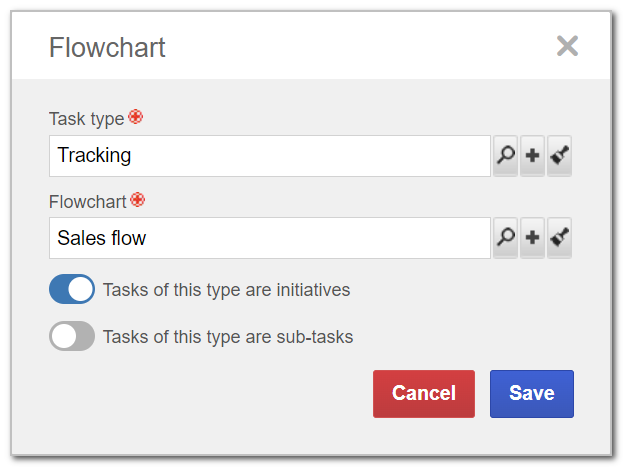
8. Click on Save.
Creating an initiative
After associating the task type and the flow that will define the initiatives of the workspace, you can create an initiative:
1. Access the Backlog screen through the Board and backlog (KN008) menu.
2. Select the workspace in which you want to create the initiative.
2. Click to expand the Create button and select the Activity option.
3. On the data screen, fill in the fields with the initiative information, such as: Activity type, Priority, Description, Start date, and Deadline.
The completion of the fields of an initiative is similar to that of a task. However, in order for it to be an initiative, you must select, in the Task type field, the type created specifically to classify initiatives and associated with a flowchart that has the Tasks of this type are initiatives option enabled.
4. After completing the fields, click on Save.
Associate initiatives to activities
With the initiative created, it is possible to associate it with tasks. To do so, take the following steps:
1. Access the Board and backlog (KN008) menu and choose the Board vision.
2. Select the workspace whose tasks will be part of an initiative.
3. Then, double-click on the card of an activity to open a side pane.
4. In the Initiative field, find and select the desired initiative.
5. Click on Save.
Tracking an initiative
The backlog allows for viewing the data of the initiatives of a workspace, as well as their structures and progress.
To do so, take the following steps:
1. Access the Board and backlog (KN008) menu. Select the Backlog screen in the Vision section.
2. Click on the Initiatives button on the side toolbar.
3. A screen with all initiatives of the selected workspace will be expanded.
4. Drag the initiatives if you want to change their order.
5. Click on the  button.
6. Click on Details.
7. The initiative data will be opened. The home screen displays the percentage of tasks that have been completed. Place the mouse over the percentage to see exactly how many have been completed and how many are still unfinished. The initiative estimate percentage will be shown as well.
8. Click on the Structure option to view the details of all tasks of the initiative. In this section, it is possible to disassociate tasks from the initiative.
Conclusion
After associating all the activities that are part of an initiative, it is possible to identify the team's performance in carrying out the tasks. By organizing activities by initiatives, it also makes it easier to check their objectives.