Configurar apontamento de horas na categoria
Pré-requisitos
- Acesso ao menu Configuração > Categoria (PL020).
- Categoria com a aba Geral configurada.
Apresentação
O apontamento de horas serve para que os responsáveis informem o tempo gasto nas ações da categoria, sejam elas isoladas ou parte de um plano.
As configurações apenas funcionarão corretamente se o SoftExpert Controle de atividades fizer parte das soluções adquiridas por sua organização.
Configurar apontamento de horas
1. Acesse o menu Configuração > Categoria (PL020).
2. Selecione a categoria desejada e clique no botão  .
.
3. Clique na aba Apontamento de horas.
4. Marque a opção Permitir apontar horas.
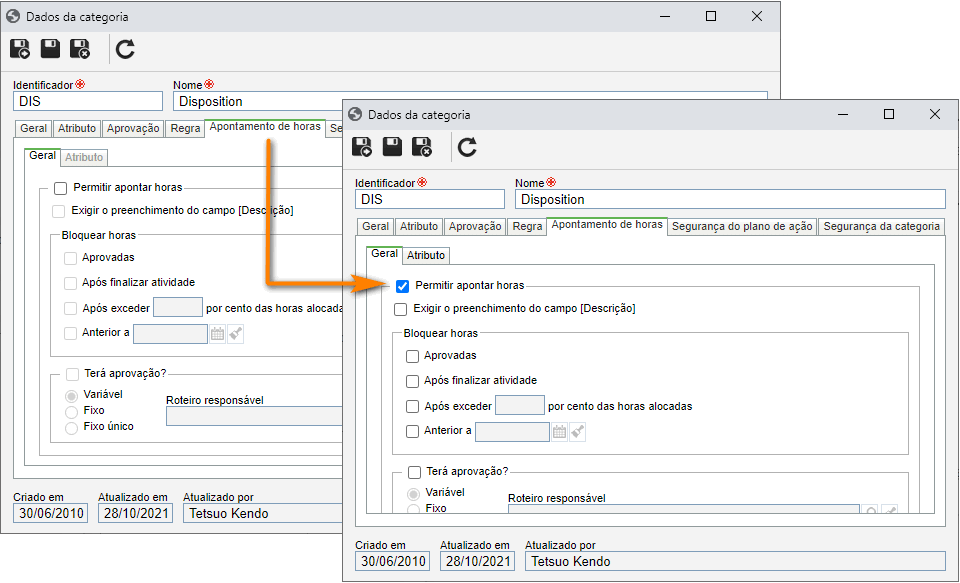
5. Em seguida, na aba Geral, marque as opções desejadas para definir quando o apontamento de horas será bloqueado:
Opções
| Aprovadas | Após a aprovação das horas apontadas nas ações, o apontamento de horas será bloqueado. |
| Após finalizar atividade | Quando as ações forem encerradas, o apontamento de horas será bloqueado. |
| Após exceder ___ por cento das horas planejadas | O apontamento de horas será bloqueado ao exceder um percentual do total de horas alocadas (planejadas) para os recursos (responsáveis) na atividade de projeto. No campo que ficará habilitado, informe a porcentagem de horas excedidas a partir da qual ocorrerá o bloqueio. |
| Anterior a | O apontamento de horas nas ações desta categoria será bloqueado antes de uma determinada data. No campo que será habilitado, informe a data antes da qual será bloqueado o apontamento. |
| Exigir o preenchimento do campo [Descrição] | No momento de apontar horas nas ações desta categoria, será obrigatório o preenchimento do campo Descrição. |
6. Caso deseje que as horas apontadas nas ações da categoria passem por aprovação, marque a opção Terá aprovação?.
A aprovação do apontamento de horas será feita por meio da tarefa "Aprovação de apontamento de horas", no componente SoftExpert Controle de atividades.
7. Em seguida, marque o tipo de roteiro desejado e selecione um roteiro no campo disponível. Para mais detalhes sobre os tipos de roteiros e como configurá-los, consulte o artigo Configurar roteiro responsável pela aprovação.
8. Feito isso, clique no botão  da tela principal.
Conclusão
Com isso, tudo está pronto para que os planos de ações e ações isoladas da categoria comportem os apontamentos de horas.
Os apontamentos de horas poderão ser realizados por meio do menu Ferramentas > Apontamento de horas. Na tela de dados de uma ação, será possível visualizar as configurações do apontamento de horas da ação pela seção Configurações > Apontar horas e verificar os apontamentos feitos pela seção Configurações > Hora real.