How to use the external sharing of documents
Prerequisites
- Access to the Document (DC010) menu.
- Previously created document.
Introduction
This feature allows users to share the electronic files of documents through links or QR Codes.
On the sharing screen, it is also possible to trigger an e-mail with the link for access to the document for the intended people.
Sharing a document externally
1. Access the Document (DC010) menu.
2. Locate the desired document and right-click on it.
3. Select the  option that will be displayed.
4. Access the External sharing tab on the document data screen.
5. In the Link for sharing tab, configure the feature according to the instructions below:
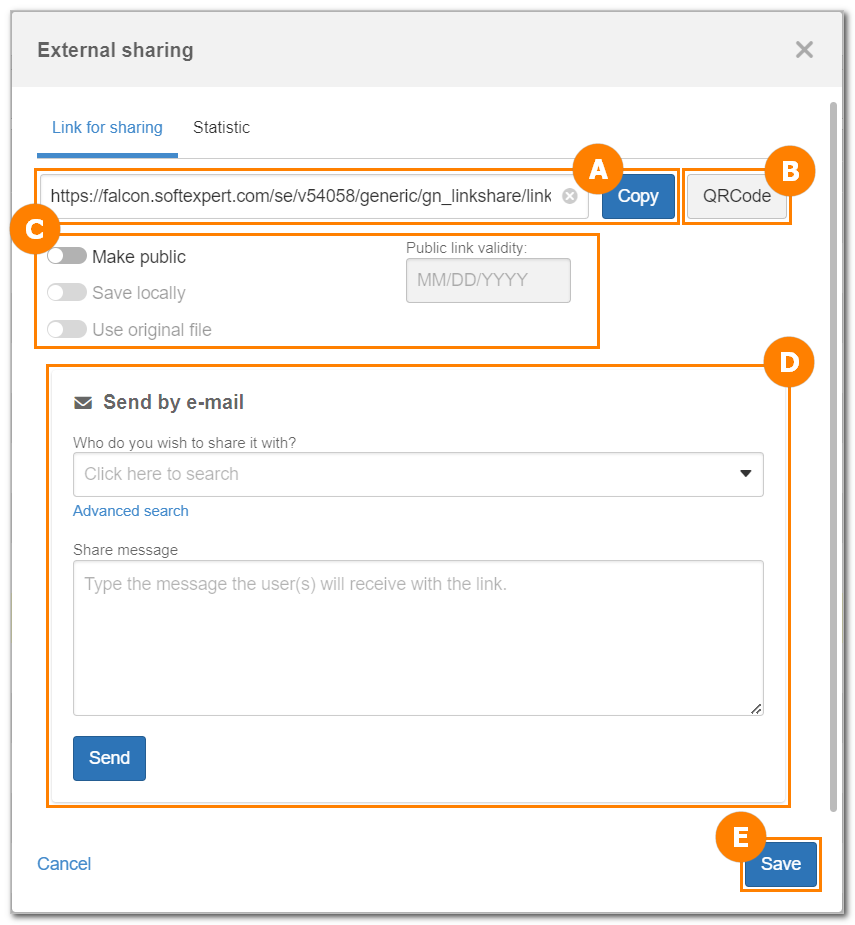
A This field displays the link to share the document. Click on Copy for the link to be copied to the clipboard, ready to be pasted and shared.
B Click on this button to generate a QR Code to share the document. Upon scanning the QR Code, the user will be redirected to the document.
C This section is used to define the sharing security and its parameters:
| Option | Checked | Unchecked |
| Make public |
This option will only be available if the logged user has the Save locally control allowed in the document security list. When this option is checked, anyone who accesses the link will be able to open the document, even without an account in SoftExpert Suite. All actions performed by users when accessing the public link will be recorded in the document's history. |
When the link is opened, the login and password for access to SoftExpert Suite will be requested. |
By checking the Make public option, the fields below will be enabled:
| Save locally | When the sharing link is accessed, the electronic file of the document will be downloaded, instead of it being opened in view mode. |
| Use original file | When the sharing link is accessed, the original electronic file will be downloaded or viewed instead of the converted PDF, if applicable. |
| Public link validity | Use this field to define a specific validity for the link. Define the date until which the link will be valid for public access. |
D In the Send by e-mail section, it is possible to send the sharing link via e-mail to the desired users. To do so, fill out the fields below:
| Who do you wish to share it with? | Enter the e-mail addresses of the system users with configured e-mails or the external users to which you wish to send the sharing link. To do so, enter the desired e-mail address or expand the field. |
| Share message | Fill out this field with the message that will be sent in the e-mail with the sharing link. |
E After performing all desired configurations, click on Save. If the sharing link is sent by e-mail, the Statistic tab will be enabled.
6. In the Statistic tab, it will be possible to track information about the usage of the sharing link and the access to the electronic file of the document.
Conclusion
The view and download history of the electronic files accessed through the public link will be available in the document history and in the System auditing (DC027) menu.