Importing a revision
Revision import via the Management > Revision (DC007) menu will not be available after the release of the new Document (DC010) unified menu.
Prerequisites
- Revision field enabled in the Control tab of the document category.
- "Revise" control allowed in the Details tab of the category's Security section.
- User with "Revise" control enabled in the Security List section of the document's Security tab.
- Previously configured document import spreadsheet.
- Access to the Management > Revision (DC007) menu.
Introduction
In the Document component, it is possible to import a revision into a document from an Excel spreadsheet.
See below how to perform the import:
Importing a revision
1. Access the Management > Revision (DC007) menu.
2. Select the document you wish to revise.
3. Click on the arrow next to the  toolbar button.
4. Select the Import XLS option.
5. From the screen that will open, click on .
6. Select the import spreadsheet configured in your directory.
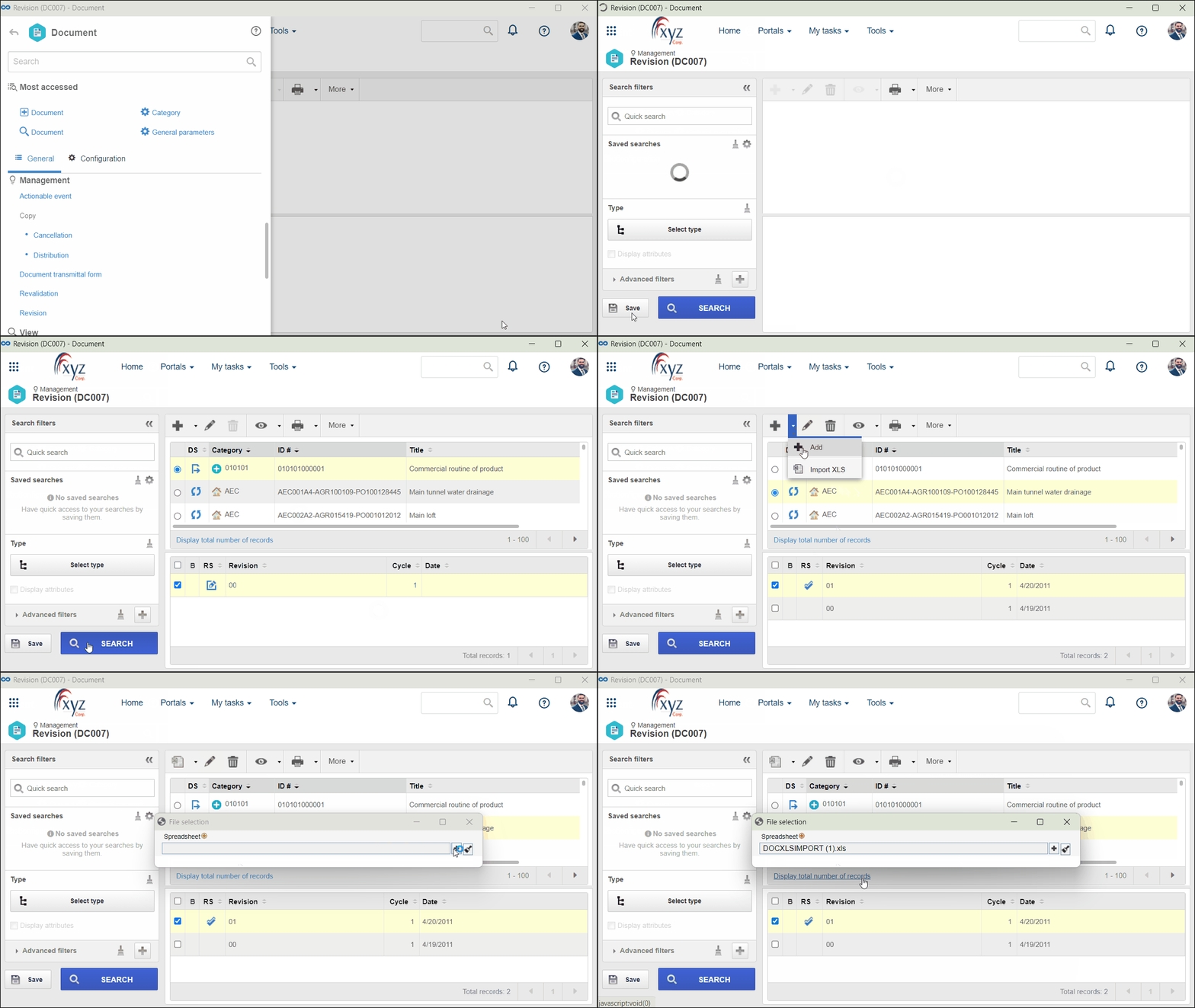
7. Click on  .
.
8. An external screen will be opened; wait for the import to finish. If there are issues with the import, the system will inform what must change.
Conclusion
The revision import has finished. It is now possible to use the imported revision file to facilitate document usage.