Adding comments to a document
This feature is not available in the new Document (DC010) unified menu.
Prerequisites
- Access to the File > Document (DC003) or the View > Document (DC021) menus.
- Created document.
- Permission to add comments in the document security record.
Introduction
It is possible to add a textual or graphic comment to documents, making the revision more complete and collaborative.
Text comments can be added to any file type.
Graphic comments (drawings, charts, images) must be used only in .dwg, .dxf, .dwl, .dgn, .bmp, .png, .tif, .gif, and .pdf files, supported by SE Viewer.
See below how to add comments to the documents:
Adding comments to the document
1. Access the File > Document (DC003) or the View > Document (DC021) menus.
2. Select the document to receive the comment.
3. Click on the "More" button on the toolbar.
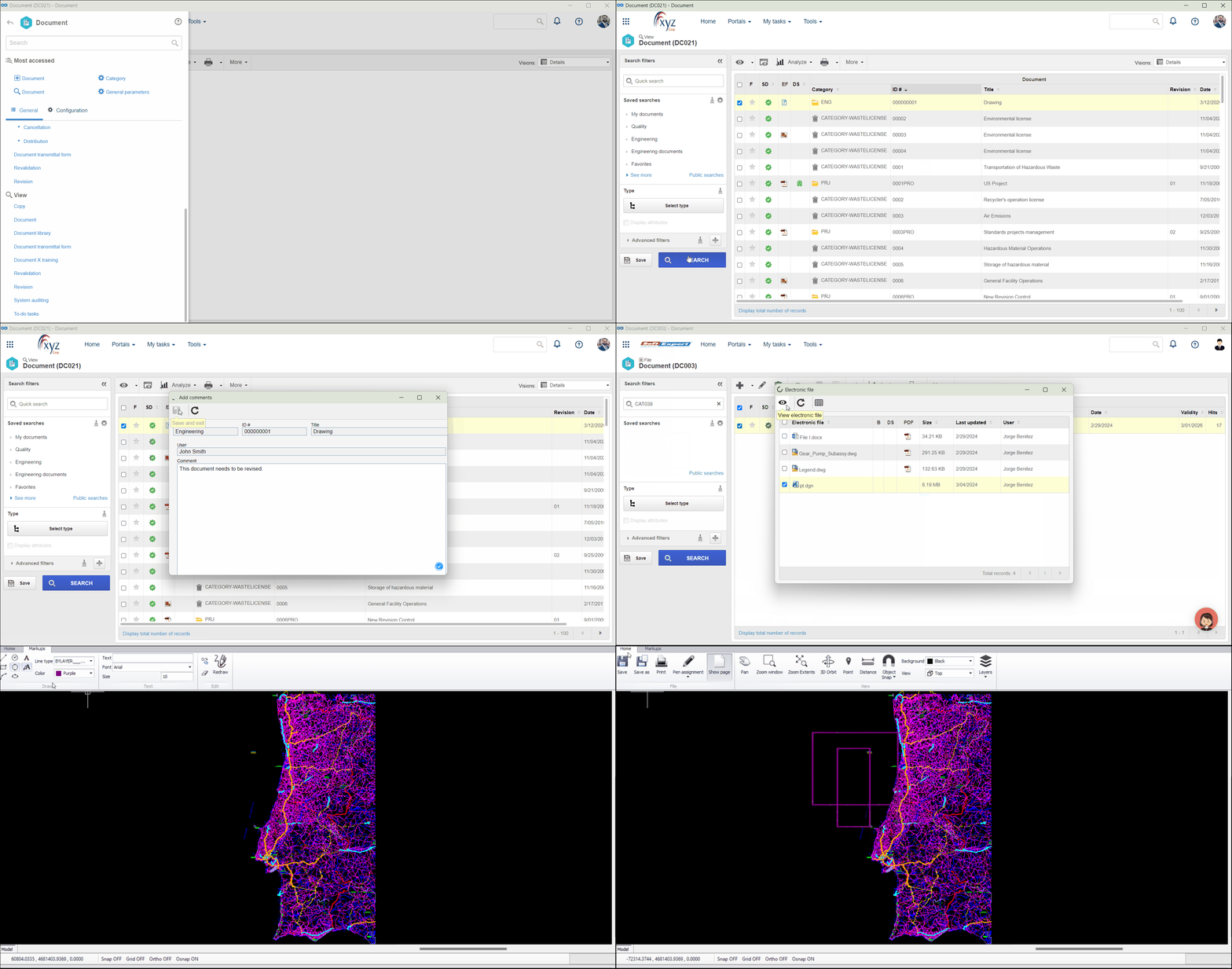
4. Click on Add text comment or Add graphical comment.
5. For textual comments, on the screen that will open, type the message in the Comment field.
6. For graphic comments, select a file, click on the View electronic file button, and use the tools in the Markups tab.
7. Click on the Save button to insert the comment in the document.
Conclusion
Once done, the comment will be recorded and associated with the document. It will be possible to view the comments associated with the document in the History tab.