Creating an issuance reason for transmittal forms
Prerequisite
- Access to the Configuration > Document transmittal form > Reason (DC050) menu.
Introduction
Reasons refer to the possible grounds for which documents are added and issued with the document transmittal forms to the recipients. Moreover, they also allow for assigning controls to the objects issued with the transmittal forms.
Reasons must be created to later be added to the documents that will be associated with the transmittal forms. Thus, each reason must be created according to the document it will follow.
See the steps to create a reason below:
Configuring an issuance reason
1. Access the Configuration > Document transmittal form > Reason (DC050) menu.
2. Click on the  toolbar button.
3. Enter an ID # and a name on the screen that will open.
4. In the Icon field, select an image to represent the reason.
5. Click on  to enable the controls.
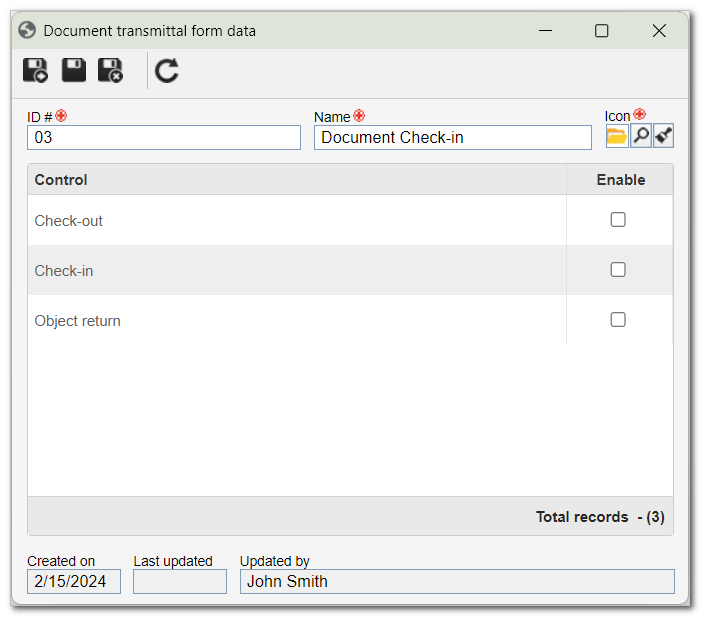
6. Check the fields of the controls you wish to enable:
Control |
Enabled |
Disabled |
| Check-out |
The system will block the editing of the electronic file of the document associated with the document output form with which the reason is associated, once it is closed. If this option is checked, the "Check-in" control will not be available for selection. |
This control will not be applied to the documents that will be issued via transmittal form. |
| Check-in |
The system will block the editing of the electronic file of the document associated with the document input form with which the reason is associated, once it is closed. If this option is checked, the "Check-out" and "Object return" controls will not be available for selection. |
This control will not be applied to the documents that will be issued via transmittal form. |
| Object return |
When issuing a document transmittal form that has this reason associated, the user will be required to enter a check-in deadline for the associated document. If this option is checked, the "Check-in" control will not be enabled for selection and the "Check-out" control will be checked by the system. |
This control will not be applied to the documents that will be issued via transmittal form. |
7. Click on the  button to save the changes.
Conclusion
Thus, a reason for the issuance of the transmittal forms has been created. It can now be added to the documents that will be associated with the transmittal form. See more information in the Associating documents with the transmittal form article.