Translating forms
Prerequisites
Introduction
The system allows for translating the forms created in it so that multilingual users can better understand their content.
In order for the fields of a form to be translated, the Enable localization option must have been checked on its general data screen.
See how to translate the fields of a form:
Translating a web form
1. Access the File > Form (FO005) menu.
2. Select the form whose fields must be translated.
3. Click on the arrow next to the  button and select the Form designer option.
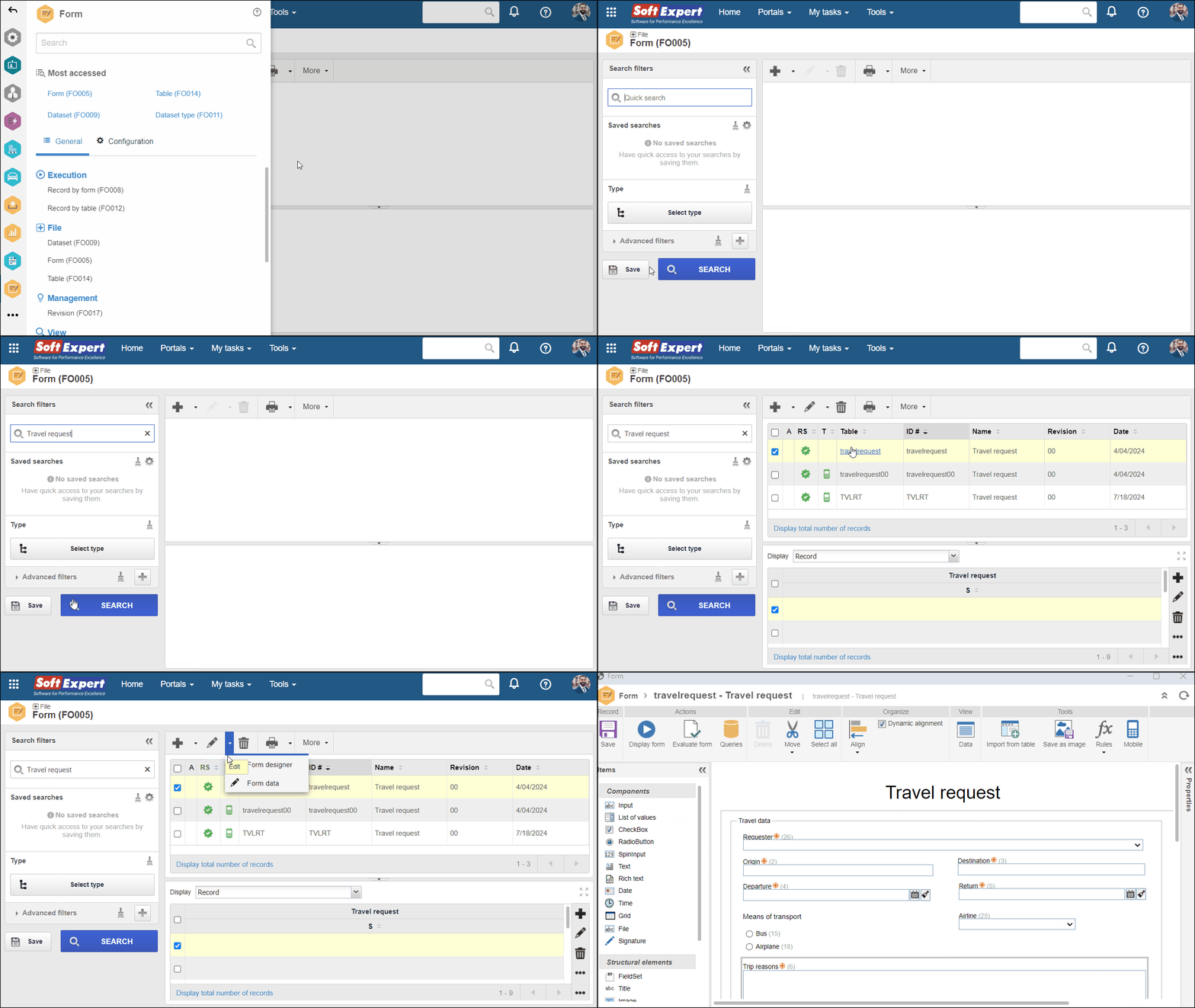
4. On the designer screen, select a form field and click on the  button located next to the title in the Properties panel.
5. On the Localization configuration screen, enter the titles translated into all enabled languages.
6. Click on the  button.
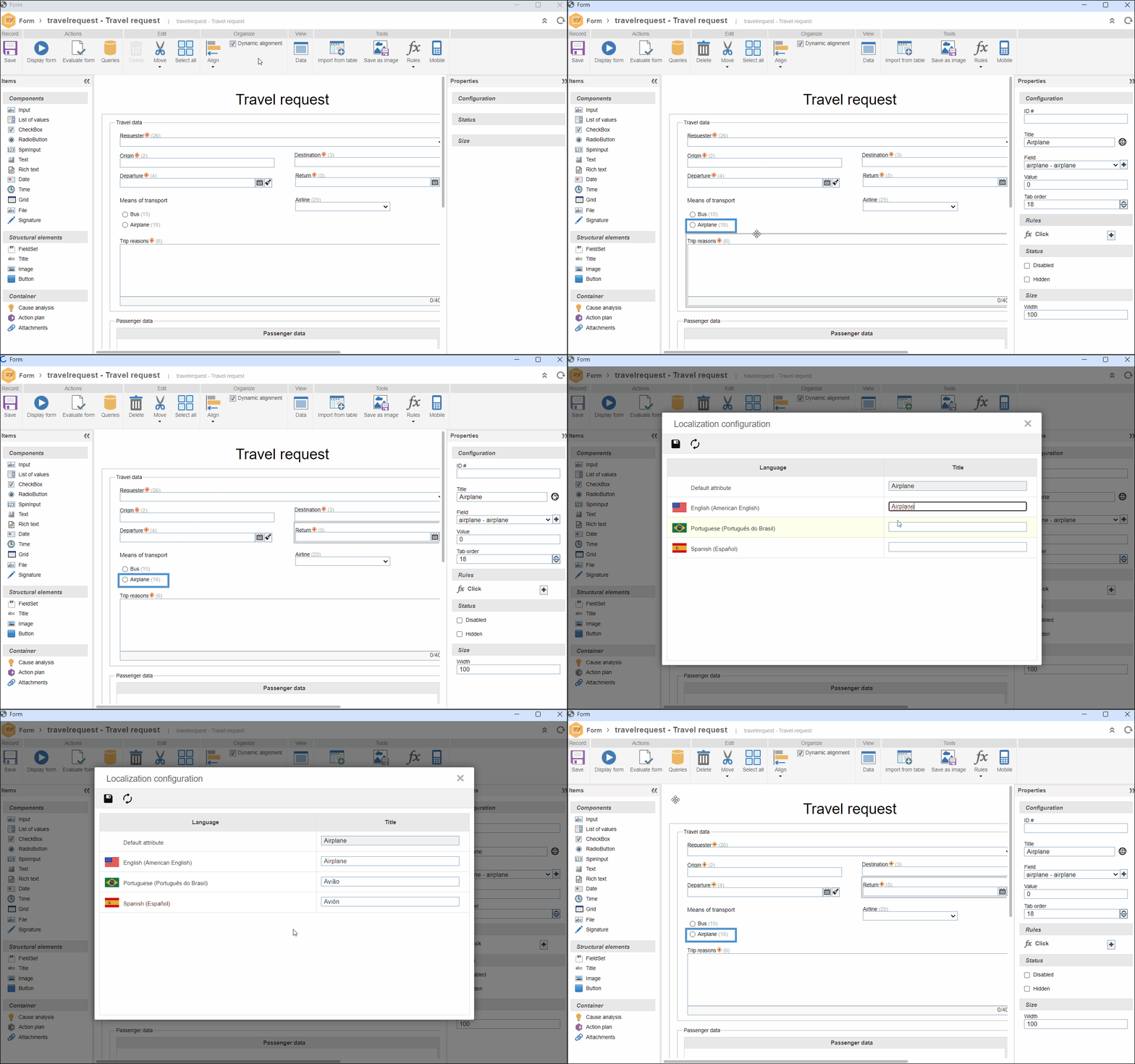
7. Repeat this procedure for the other form fields and click on the Save button.
8. With the translation finished, when we click on the Display form button, the fields will be shown in the same language as that of the system. Otherwise, the default title of the field will be displayed.
Conclusion
Thus, the translation of the form has been completed successfully!