View current and obsolete versions
This article is valid until version 2.1.9 of the system. Click here to access the documentation referring to later versions.
This topic will teach you to view current and obsolete versions of an item.
For that, simply follow the steps below:
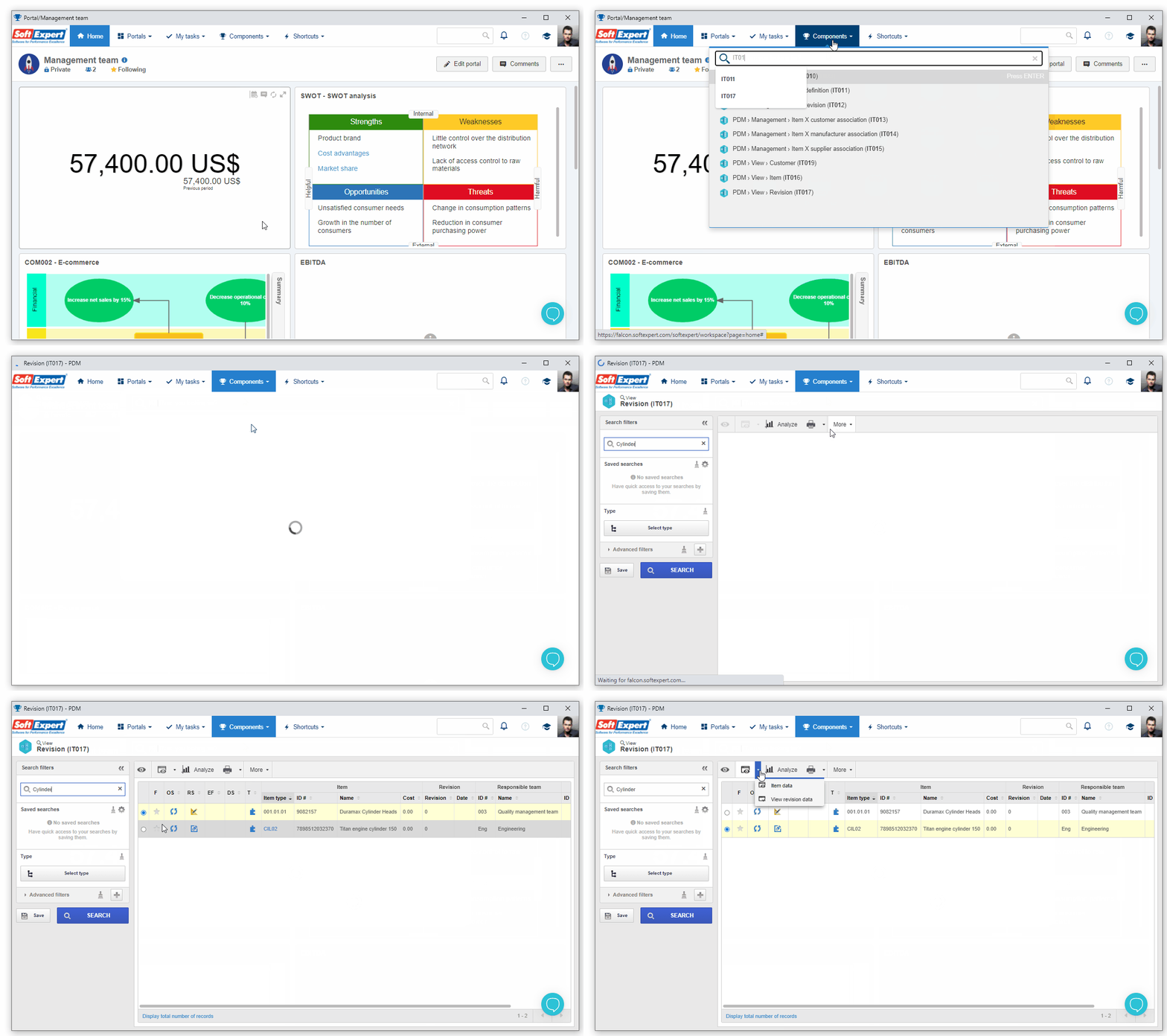
1. To view an item, access the IT017 menu.
2. In the Quick search field, enter the title of the desired item and press ENTER.
3. Select the record in the listing and click on the  button on the toolbar.
4. On the item data screen, click on Revision and select the Revision history option.
5. All revisions that the item has gone through will be displayed.
6. Select the desired revision and click on the button to view its data.
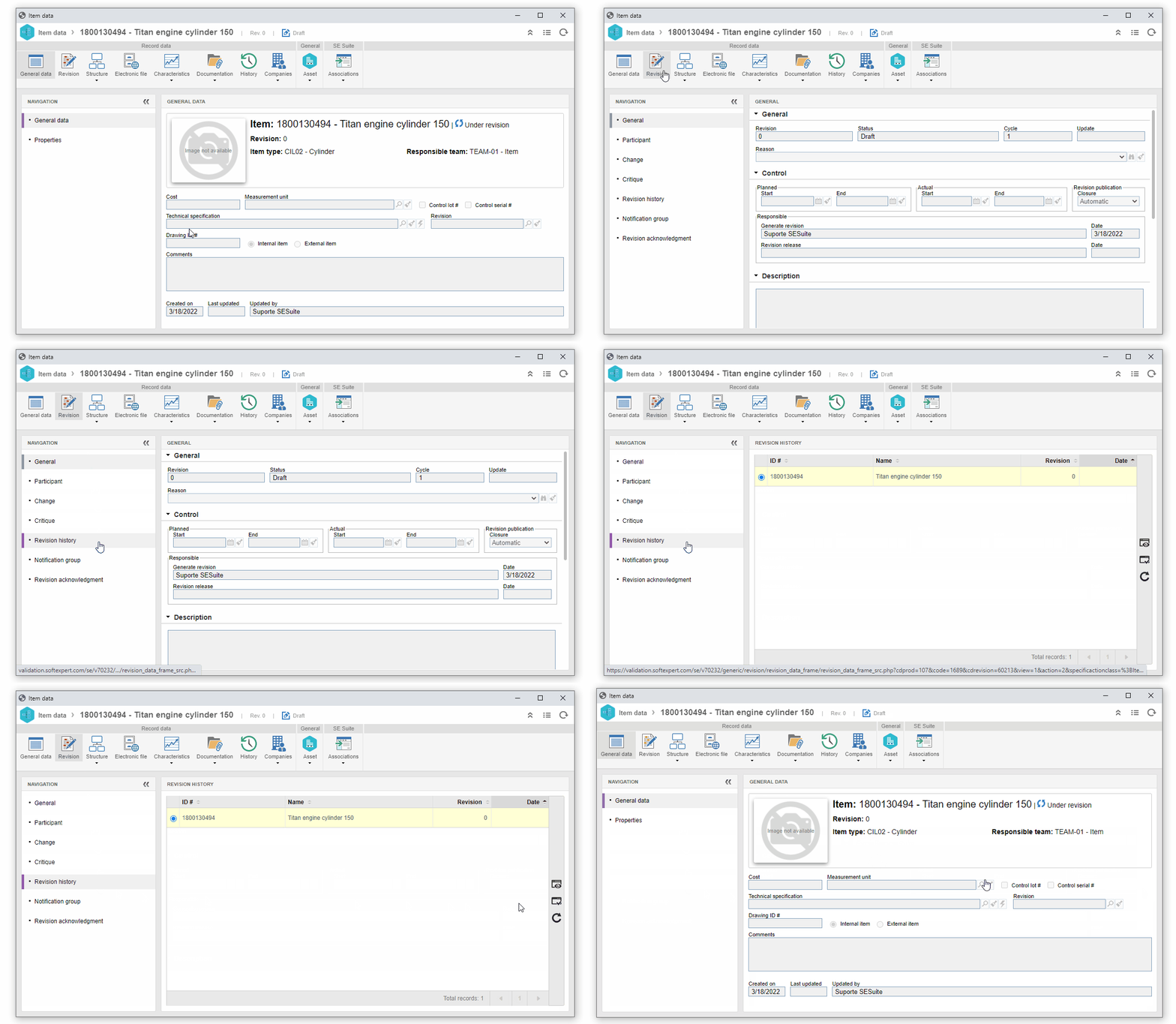
The item versions have been successfully viewed!