Configuring an instance in the activity
Prerequisites
- Access to the Process (PM063) menu.
- Previously created and modeled process.
- User activity, system activity, or decision added to the process flowchart.
Introduction
The instance configuration defines the identification and control of the instance.
See how to configure this feature:
Configuring instances
1. On the activity/decision data screen, click on Configurations > Instance.
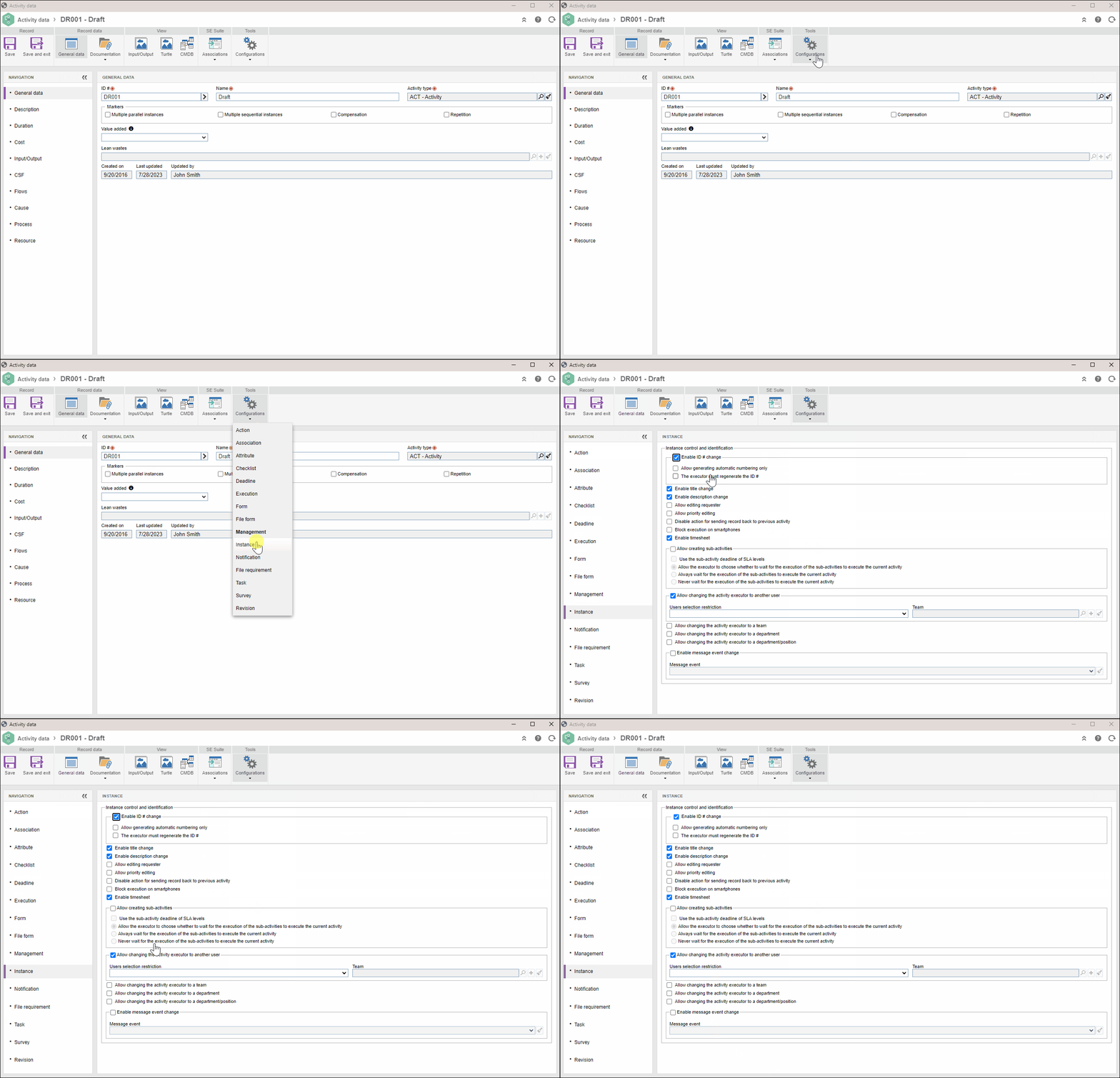
2. Check the desired options:
| Identification and control | Checked | Unchecked |
| Enable ID # change | If this option is checked, during activity execution, the executor will have permission to edit the instance ID #. Allow generating automatic numbering only: with this option checked, to change the ID #, the user will have to click on the Generate automatic ID # button. In this case, the ID # field is blocked for manual editing, allowing the maintenance of a numbering pattern for the instances according to the need of each process. The executor must regenerate the ID #: by checking this option, during activity execution, the executor will be required to generate a new ID # for the instance; otherwise, the creation of a new ID # for the instance will not be required. |
If this option is not checked, during activity execution, the executor will not be allowed to edit the instance ID #. |
| Enable title change | If this option is checked, during activity execution, the executor will have permission to edit the instance title. | If this option is not checked, during activity execution, the executor will not be allowed to edit the instance title. |
| Enable description change | If this option is checked, during activity execution, the executor will have permission to edit the instance description. The description will only be available for editing if the Enable description information option is checked in the process data, in Configurations > Instance. | If this option is not checked, during activity execution, the executor will not be allowed to edit the instance description. |
| Allow editing requester | If this option is checked, during activity execution, the executor will have permission to edit the instance requester. The requester will only be available for editing if the Enter requester option is checked in the process data, in Configurations > Instance. |
If this option is not checked, during activity execution, the executor will have permission to edit the instance requester. |
| Allow priority editing | If this option is checked, during activity execution, the executor will have permission to edit the instance priority. The priority will only be available for editing if an evaluation method has been selected in the Priority section of the process data, in Configurations > Instance. |
If this option is not checked, during activity execution, the executor will not have permission to edit the instance priority. |
| Disable action for sending record back to previous activity | If this option is not checked, the default action to return the instance execution to the previous activity will not be displayed. |
If this option is not checked, during activity execution in SoftExpert Workflow, the Return action, which allows the instance execution to return to the previous activity, will be displayed. Even if this option is unchecked, the return action will not be displayed when:
|
| Block execution on smartphones | The activity cannot be executed when the system is being accessed through a smartphone. | If this option is not checked, the activity can also be executed when the system is accessed via a smartphone. |
| Enable timesheet | Check this option to enable timesheet in the activities during activity execution. These configurations will only work correctly if the Time Control component is part of the solutions acquired by your organization. | If this option is not checked, the timesheet will not be enabled during activity execution. |
| Allow creating sub-activities |
If this option is checked, during activity execution, the executor will have permission to create sub-activities. Sub-activities can be created during process execution in cases in which there may be activities that have not been predicted during process modeling. This way, situations that were not foreseen in the process template and that require the interaction of new participants or the creation of new flow steps may be dynamically generated by any other activity being executed. If this option is not checked, during activity execution, the executor will not have permission to create them in the instance. The following configurations will also be available:
|
If this option is not checked, the creation of sub-activities will not be allowed. |
| Allow changing the activity executor to another user | If this option is checked, during activity execution, the executor will be able to assign the activity execution to another user. This situation may occur, for example, when an activity/decision is assigned to a person in the company that no longer is responsible for executing the action or making a determined decision in the process. However, if it is necessary to set a group to which the activity can be assigned, specify in the Users selection restriction field whether the restriction will be applied to the Current executor's teams or to a specific Team. | If this option is not checked, during activity execution, the executor will not have permission to assign the activity execution to another user. |
| Enable message event change | If this option is checked, during activity execution, the executor will have permission to edit the content of a message event of the instance. Select, in the Message event field, which event the executor may edit. | If this option is not checked, during activity execution, the executor will not have permission to edit the content of a message event of the instance. |
3. After configuring the instance, click on Save and exit.
Conclusion
Thus, the activity/decision instance has been successfully configured.