Associating a course
Prerequisites
- Access to the File > Process (PM022) menu.
- Previously created process.
- SoftExpert Training must be part of the solutions acquired by the organization.
Introduction
In the process data, it is possible to associate all necessary courses for the execution of the process.
It is important to point out that this article will cover only the association of courses; for further details on creating them, refer to the documentation of the Training component.
Associating a course
1. Access the File > Process menu (PM022).
2. Search for and select the process to which you wish to add the course.
3. Click on the arrow next to the  button and select the Process data option.
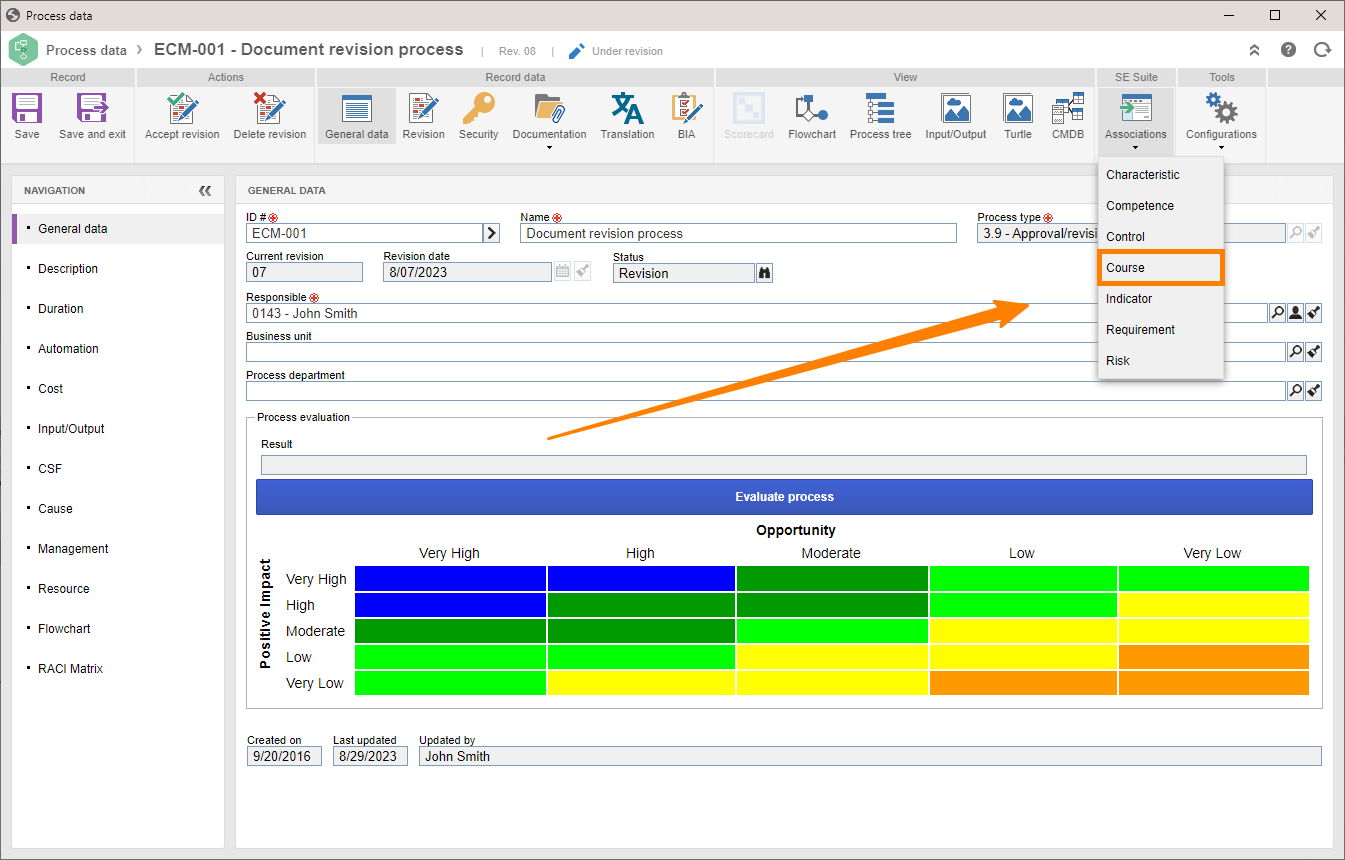
4. On the toolbar, select the Associations option and click on Course.
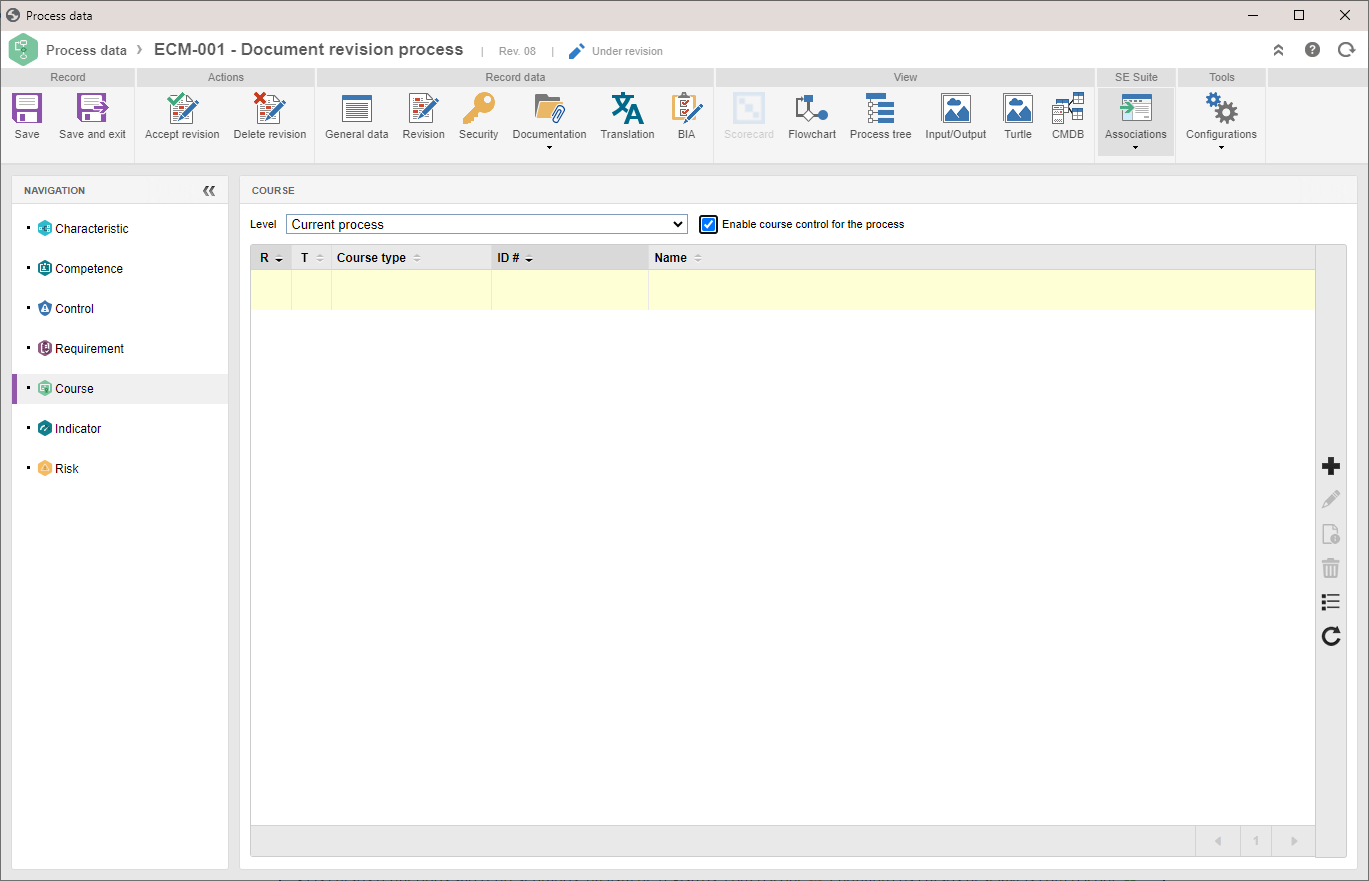
5. Check the Enable course control for process option in order to associate courses with the process and its activities.
6. In the Level field, select one of the following options:
| Current process | Select this option to be able to associate courses with the process. |
| Process activities | Select this option to view the courses associated with the process activities. |
7. With the Current process option selected, click on the  button.
8. Find and select the desired courses.
9. If necessary, check the Required field to consider the course as required.
10. Click on the Save button.
• Required courses are displayed in the list of records with the  icon, while desirable courses are displayed with the
  icon.
icon.
• After associating the course, use the and  buttons, respectively, to edit the association data and disassociate the course.
Conclusion
The necessary courses for the execution of the process will be associated. If no other configurations are necessary, click on the Accept revision button to release the process.